In Week 1 you learned to give an AI good context. This week you put that to work on a real, messy data file — and you do the same job twice.
First, by hand in Excel
The slow, reliable way. The same steps on the same file give the same answer every time. But that reliability comes from you carrying every instruction yourself.
Then, by directing an AI
Fast and flexible — but an AI is not reliable on its own. The same loose request can give a different answer twice. What makes it reliable is a clear specification: you tell it exactly what to do, and you have it build a script, which then does the same thing every time.
Doing it by hand first is not busywork. It gives you a result you trust — and that result is what you check the AI's work against. Then, because the AI built something with your name on it, the lab does not stop at a result. It stops when you can explain what you built.
Three moves, three parts: do it, direct it, understand it.
lab_02_analysis.py (or the .ipynb notebook you ran it in), what the specification produced.lab_02_explainer.html, from Part 3.A few things are posted with this lab in the Week 2 module. Open them before you start:
JEA Detail.txt — the data file. Download it (do not open it in Excel yet) from either source: Canvas Files, or the course data repository.Tools. Part 1 uses Excel with Power Query. Part 2 offers two flows for turning your specification into a working script — one using Google Colab in your browser (no install needed), one using a local Python setup with Codex or ChatGPT. You pick whichever fits the tools you have; both are laid out inside Part 2.
You will import the messy JEA Detail.txt into Excel, strip out everything that is not real data, and end with a clean ten-column table plus a count of journal entries for each user. Follow the steps as written — that exactness is the point. Power Query may be new to you. That is expected — the steps below assume no prior experience with it; do them in order. The Week 2 webinar also includes a short Power Query walkthrough and lab hints.
Before Excel, open JEA Detail.txt in a plain-text editor — VS Code if you have it (preferred), otherwise Notepad on Windows or TextEdit on Mac. Just look. You are checking two things.
UTF-16 LE, UTF-8, or ANSI. Write down exactly the one your editor shows — this file is not the usual UTF-8. You will need it in Part 2, and an import that assumes the wrong encoding fails before it reads a single row. New to the idea of encodings? Read the short encoding primer posted in this Week 2 module.The file is a tab-separated export with several deliberate problems:
Company XYZ, REPORT DATE, GENERAL LEDGER DETAIL, a row of ==== — before the real data starts.Account, Post, User, Transaction), and a lower, complete line (Account, Category, Date, Period, ID, and the rest). Only the lower line is the one to keep.==== and a row reading PAGE 0002 (and so on). They sit scattered in the data and must come out.Amount values are wrapped in quotes and padding spaces, with a thousands comma: " 50,000.00 " instead of a clean number.ID cells begin with an invisible non-printing character — a stray line break. The value displays as blank or pushed out of place, so the user looks like missing data. Excel's CLEAN function removes these characters; TRIM does not, because TRIM only removes spaces.Underneath all of that are ten real columns: Account, Category, Date, Period, ID, Manual, Description, Number, Location, Amount.
Excel is the intended tool for Part 1. If you do not have it, Google Sheets is an allowed substitute — use File → Import → Upload, choose tab as the separator, and follow the same logic (delete the header lines, delete the repeating page-break rows, keep the ten real columns, count entries per user). The screenshots will look slightly different but the task is identical. You can also check out a laptop with Excel from the University Library.
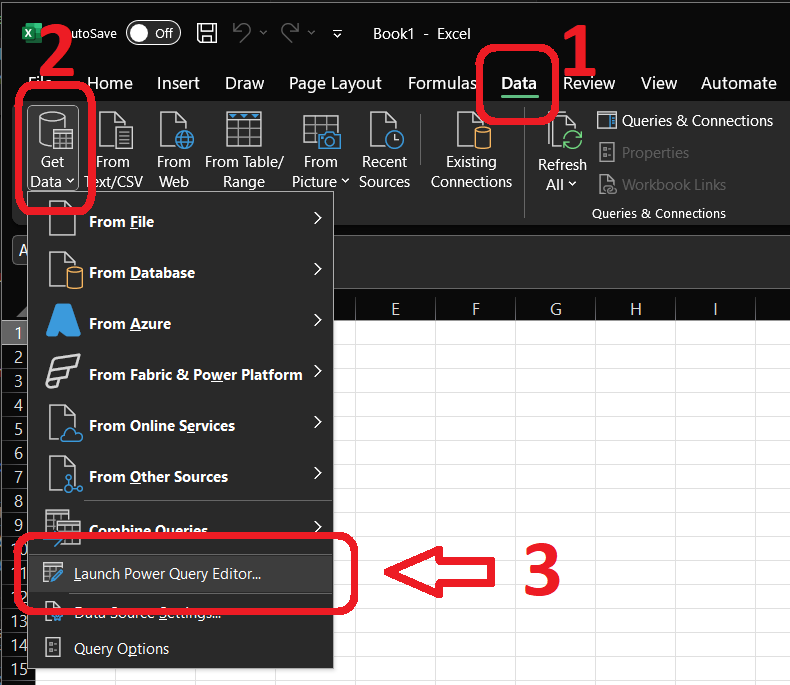
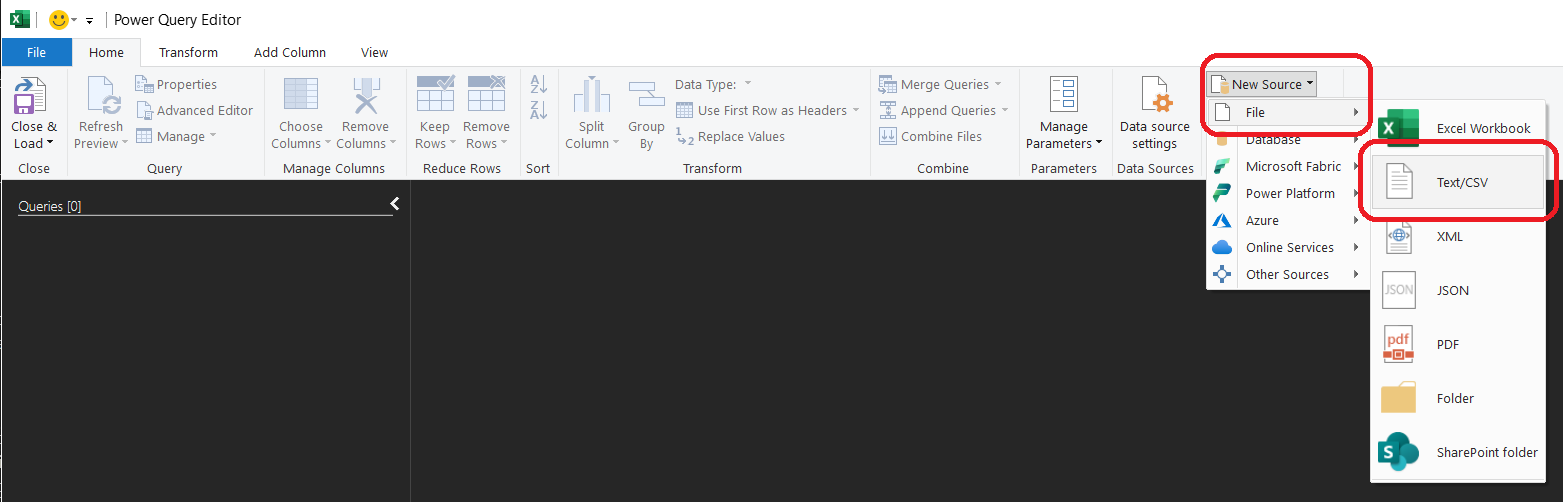
In Excel, go to the Data tab and choose Get Data → From File → From Text/CSV. This opens Power Query, Excel's import-and-transform tool.
Browse to the JEA Detail.txt file you downloaded and open it.
Power Query shows a preview. Confirm the delimiter is set to Tab. Notice the File Origin box near the top of the preview — that is the encoding, and Power Query detected it for you automatically. Remember that it had to be set; in Part 2 nothing will detect it for you. You will see the messy header lines at the top — that is expected. Click Transform Data (not Load) to open the Power Query editor.
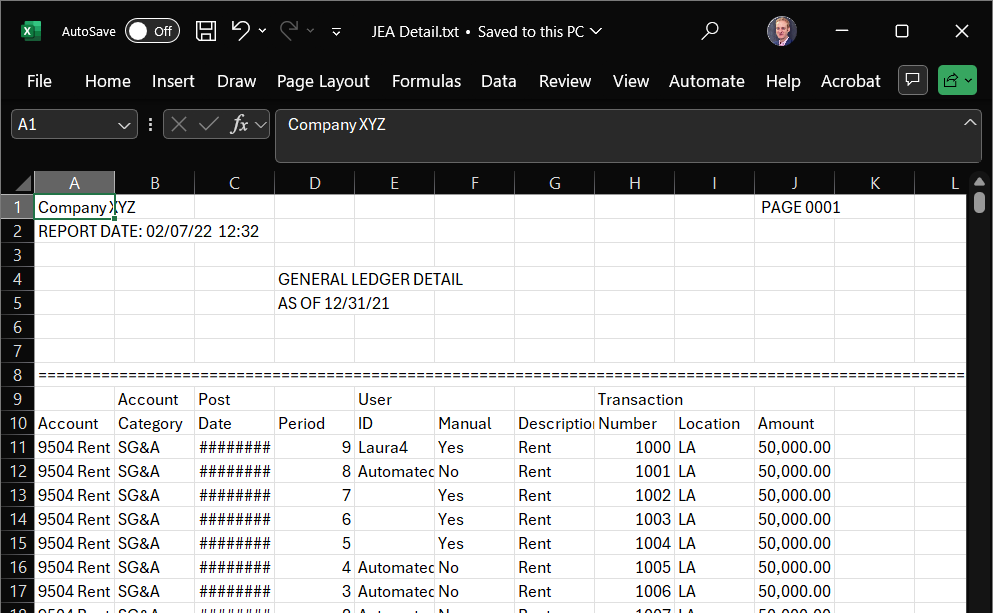
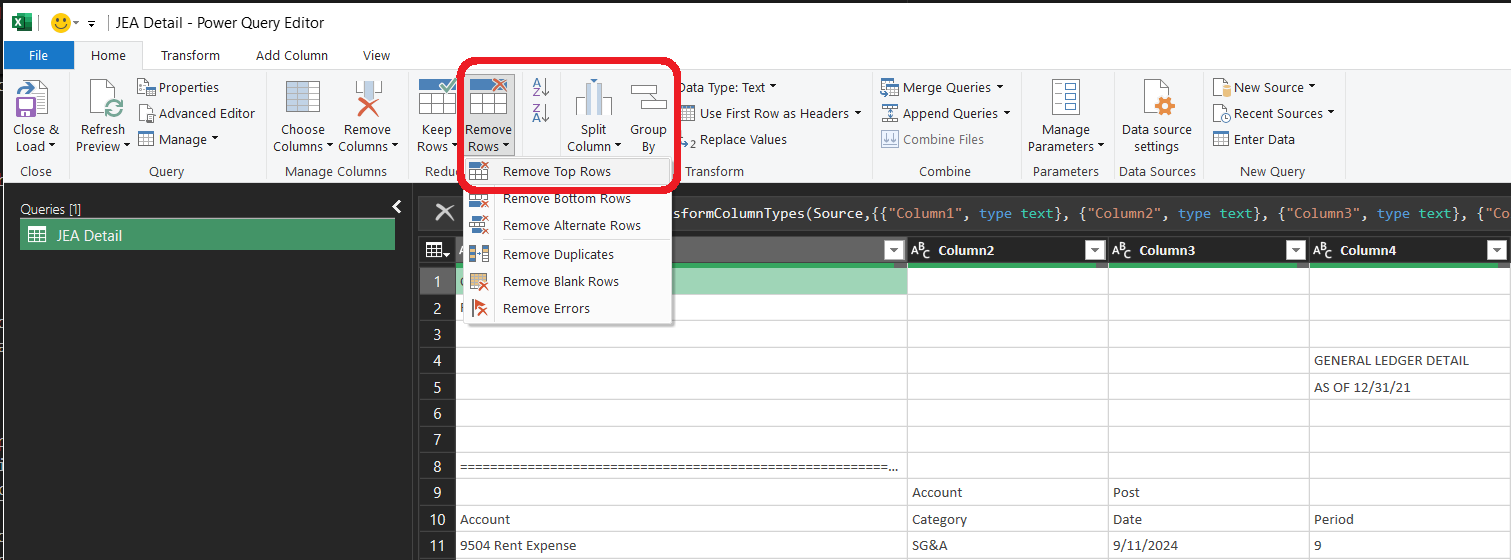
The Power Query editor now shows every row, including the junk. The first several rows are the report header; somewhere below them the real column headers and data begin.
Two things sit above the real data: the report header, and then the upper of the file's two header lines. On the Home tab, use Remove Rows → Remove Top Rows and remove every row down to — but not including — the lower, complete column-header line, the one that reads Account, Category, Date, Period, ID, Manual, Description, Number, Location, Amount. Leave that complete line as the first row.
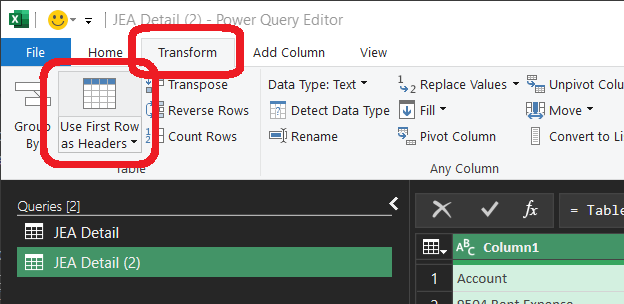
The first remaining row is now the complete column-header line. Use Use First Row as Headers so Account, Category, ID, Amount and the rest become actual column names instead of data.
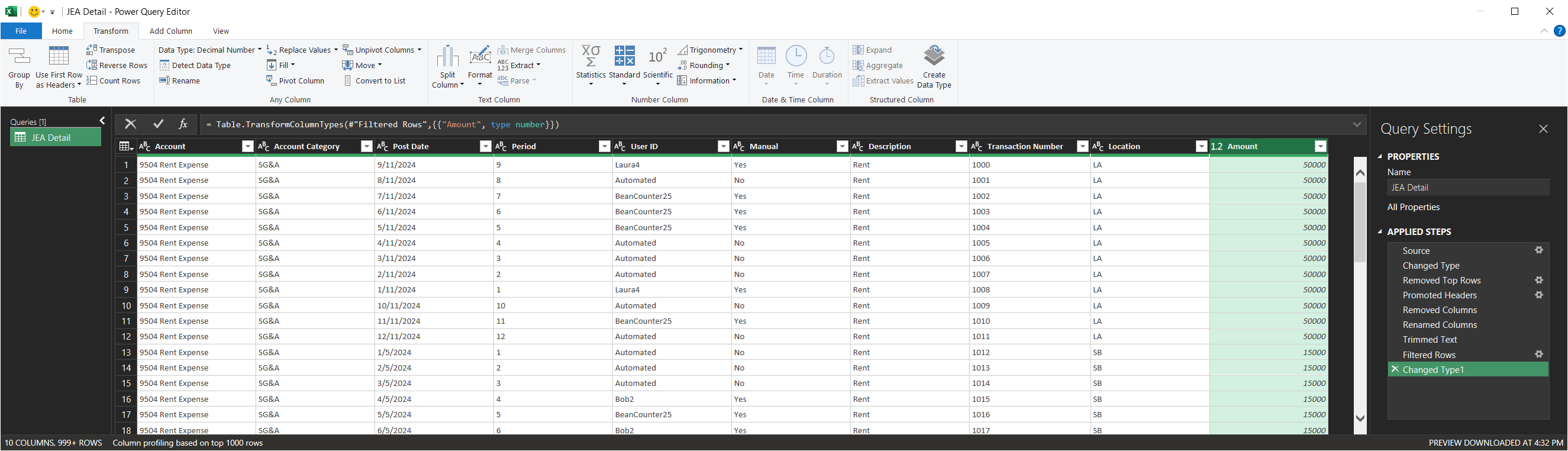
The page-break rows are scattered through the data — each is a row of ==== or a row reading PAGE and a number, with the rest of that row empty. The simplest way to drop them: pick a column that a real journal entry always fills — Category works well — and Filter it to remove the blank (null) rows. The page-break rows have nothing in that column, so they fall out; real entries stay. Then set each column's data type: click the small data-type icon to the left of the column name in its header, and choose the type — Amount to Decimal Number, the date column to Date. Setting Amount to a number is the step that strips the quotes, spaces, and comma from values like " 50,000.00 ", so do not skip it. When the step list on the right looks complete, click Close & Load.
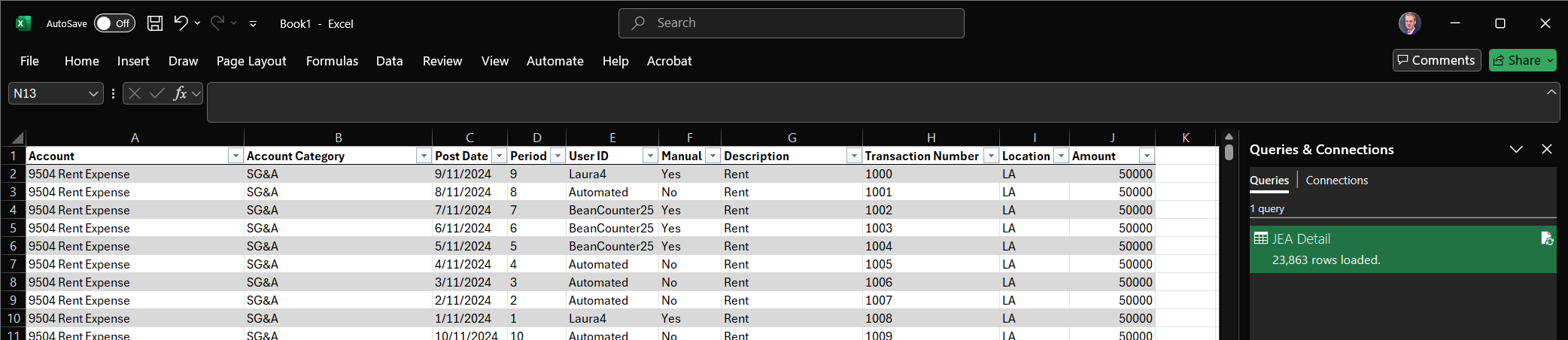
On your cleaned table, you now need a count of how many journal entries belong to each user — the ID column. The straightforward way is a PivotTable: select your table, choose Insert → PivotTable, put ID in the Rows area and ID again in the Values area (it will summarize as Count). You get one row per user with a count beside it.
ID cells begin with an invisible non-printing character. In the PivotTable that user shows up with a blank or broken-looking label — the count beside it is right, but you cannot tell whose it is. Clean the ID column first (Excel's CLEAN function removes non-printing characters; TRIM alone will not, because TRIM only removes spaces). Note this trap — your Part 2 specification has to mention it.
New to PivotTables? There is a short practice tool in this Week 2 module, and the Week 2 lecture covers them.
ID and its number of journal entries). You will upload that workbook file (.xlsx) to the Lab 2 quiz — if you used Google Sheets, download it first with File → Download → Microsoft Excel (.xlsx). Keep the per-user count where you can see it: that small table is the by-hand result you hold the AI's work against in Part 2.
ID — both saved in the workbook you will upload to the Lab 2 quiz.
Now you get the same result a second way: you write a specification, and an AI builds a Python script that carries it out. You are not going to write Python, and you are not expected to read it. Your job is the specification — the precise instructions that make the AI build the right tool.
Part 2 works in two stages: first everyone writes the specification, then you pick one of two flows to turn it into a working script. Start with the specification — open the Lab 2 Specification Template (linked here and in the Week 2 module). It is built on the same pattern as your Week 1 spec document: a file manifest, the Build Requirements, review / acceptance criteria, the grading rubric, and a self-assessment gate. The template marks which parts are already filled in for you and which you write.
The part you write — Build Requirements — is the centerpiece of the lab, the piece graded on precision. It has four parts, each mapping to something you already did in Part 1:
ID column.ID column, then count the journal entries per user. Order matters — say which comes first.==== and PAGE lines), the quoted-and-spaced Amount values, the non-printing character in the ID column. For each, say what should happen.lab_02_cleaned.csv and lab_02_user_counts.csv).The template's Review / Acceptance Criteria are given too — the script's per-user counts should match your Part 1 by-hand result, and the cleaned CSV should pass the Output Validator. Before you submit, work the template's Self-assessment gate.
Two routes turn your specification into a working script. They reach the same place — a working lab_02_analysis.py and the two CSV files — so pick the one that matches what you have on your computer. The prompting steps in 2.3 are the same in both.
Use this if you do not have Python set up on your computer. Everything runs in your browser; you need a free Google account.
File → New notebook.Use this if you already have Python installed and want to work on your own machine, with a terminal agent such as Codex or with the ChatGPT app.
lab_02_analysis.py in that folder from your specification.python lab_02_analysis.py. The script reads the data file from the web, or you can download JEA Detail.txt into the folder.Whichever flow you chose, directing the AI is a process, not a single prompt — and knowing what to prompt about is the skill. Three moves:
Move 1 — Hand over the spec and set the job. Give the AI your specification and tell it plainly what to build:
Here is a specification for a data-cleaning task. Write a single Python script, with pandas, that does exactly what it describes. I will run the script myself. [your specification]
Move 2 — Pin down the output. A script that runs is not the same as a script that produced what you need. Tell the AI exactly what the script must hand back — this is the move students most often skip:
The script must:
1. read the data file directly from this web address, with no
upload step:
https://raw.githubusercontent.com/sean-mccaman/acctg5150-090/main/week-02/JEA%20Detail.txt
2. print a short descriptive summary -- the number of journal
entries, the number of distinct users, and the count of
entries per user;
3. write two files: lab_02_cleaned.csv (the cleaned dataset)
and lab_02_user_counts.csv (the per-user count).
The two CSV files are how you check the work. lab_02_user_counts.csv is what you compare to your Part 1 by-hand result; lab_02_cleaned.csv is what the Output Validator inspects. An analysis you cannot open is an analysis you cannot trust.
Move 3 — Build and run. Have the AI produce the script, then run it — in your Colab notebook for Flow A, in your terminal for Flow B. New to what pandas is doing? The pandas primer is a short, plain-language reference — you are not asked to write the code, only to recognize it. When the script is final, save it as lab_02_analysis.py — or keep the .ipynb notebook you ran it in. You can submit either.
Run the script. It prints a descriptive summary — read that first; the row count and per-user counts should look sane. Then check the output two ways.
lab_02_cleaned.csv. It looks for the common mistakes a cleaning script makes — leftover header rows, page-break junk, an Amount column still stored as text — and gives you a short report.lab_02_user_counts.csv match the count you built by hand in Part 1?If the script cannot even read the file, that is almost always the encoding — see the encoding primer.
A mismatch does not always mean the AI failed. Usually it means your specification left something vague or unsaid — but it can also mean your by-hand count in Part 1 had a small slip (the hidden-character trap in the ID column is the likely spot). Re-check both sides, then find the requirement that caused the gap. Common culprits:
==== and PAGE lines), so the script kept some — and the validator flags them.ID column, so a user's count row came out blank or broken.Fix that requirement in your specification, ask the AI to rebuild the script, and run it again.
lab_02_analysis.py) — both uploaded to the Lab 2 quiz.
lab_02_analysis.py, and its per-user count matches your Part 1 by-hand result (or you have explained the mismatch you are still chasing).
You directed an AI to build a script, and the script produced a number. That number now has your name on it. You do not need to be able to write the Python — but you do need to understand what it does, well enough to explain it. This part is how you get there.
In Week 1 you wrote about_me.md. Section 4 — "How I learn and what makes concepts stick" — describes how you actually absorb new material. Open that file and copy that section. You are about to put it to use. If your Section 4 is thin, take two minutes now to add real detail about how you learn — that detail is what makes this part work.
Do not just ask the AI to "explain the code." Ask it for options, and steer. The goal is a single self-contained HTML page — an explainer — that walks through how each part of your script works, in the format that fits how you learn.
These prompts show you how to ask. The wording is yours — fill in the brackets.
Present me with 5 options for an HTML learning document that explains how each part of this code works. I will paste the code next. I learn best when [paste Section 4 of your about_me.md] -- lean the options that way.
Paste your script. Read the five options. Pick the one that fits how you learn, and refine it:
Option 3 is closest. Build that one out as a single HTML file, but [what you would change]. If anything I asked for is unclear, ask me before you build it.
If none of them fit:
None of these fit how I learn. Give me 5 more, and make them more [visual / example-driven / broken into smaller steps].
When you have the explainer, save it as a file named lab_02_explainer.html. Ask the AI to give it to you as a single downloadable HTML file; if it gives you the HTML as text instead, paste that text into a plain-text editor and save it with a .html extension. Open it in your browser to confirm it renders.
An explainer you do not understand is not finished. If a part does not land, say exactly what does not land, and ask again:
I still don't follow [the specific part]. Explain just that part again, assume I have never written code, and use a real row from the file as your example.
The bar: you could explain, in plain language, what your script does and why its number can be trusted. That is the test — not whether you could write the code, but whether you understand the tool you directed into being.
lab_02_explainer.html, uploaded to the Lab 2 quiz.
lab_02_explainer.html that genuinely explains your script, and you could walk a classmate through what the script does without reading the code aloud.
The Lab 2 quiz includes three short reflection questions. Answer all three — with specifics, pointing at your own work, not generalities:
Total: 100 points, graded in two parts — the lab (85) and the specification (15). The components line up one-to-one with the upload slots and reflection questions in the Lab 2 quiz.
The lab — 85 points. Most of these are earned by completing each part in good faith and showing your work. Clear, proofread writing is expected throughout — the standards from the Example Managing-Up Document.
| Component | Pts | Credit when… |
|---|---|---|
| Part 1 — your cleaned workbook | 25 | The file is cleaned in Excel or Power Query; the workbook shows the clean ten-column table and a correct per-user count. |
| Part 2 — the script and the check | 25 | A working .py script is submitted, and its per-user count was checked against the Part 1 by-hand result. If the counts differed, the mismatch was diagnosed to a specific requirement and the spec corrected; if they matched on the first run, the reflection names what in the spec made that happen. |
| Part 3 — the explainer | 20 | The explainer page is submitted and is about your own script. |
| The three reflection questions | 15 | All three answered, in your own words and pointing at your own work — they show you understand what you built. |
The specification — 15 points. Your specification is graded separately, on precision — it is the one piece of the lab judged closely, because writing it is the skill this lab teaches. The detailed criteria for these 15 points are in the specification document itself; check your spec against that rubric before you submit.
Everything goes to the Lab 2 quiz in the Week 2 module. The quiz has a separate, labeled slot for each item, so you always know what goes where:
.xlsx), showing the clean table and the per-user count. Google Sheets users: download as .xlsx first.lab_02_spec.md (a Markdown file is just plain text — write it in any text editor; a PDF is also accepted).lab_02_analysis.py, or the .ipynb notebook you ran it in.lab_02_explainer.html.Name your files so each one starts with your university ID — for example u1234567_lab_02_analysis.py.
Dataset and the Part 1 cleaning steps adapt the Spring 2026 ACCTG 5150 Lab 2 ("Connecting to and Cleaning Data"), originally authored by Mac Gaulin.